
Find your way around the app
3 min read
The bottom tabs, the menu drawer, and the dashboard quick actions explained.
Video: A quick look inside · 0:56 · open tutorial page
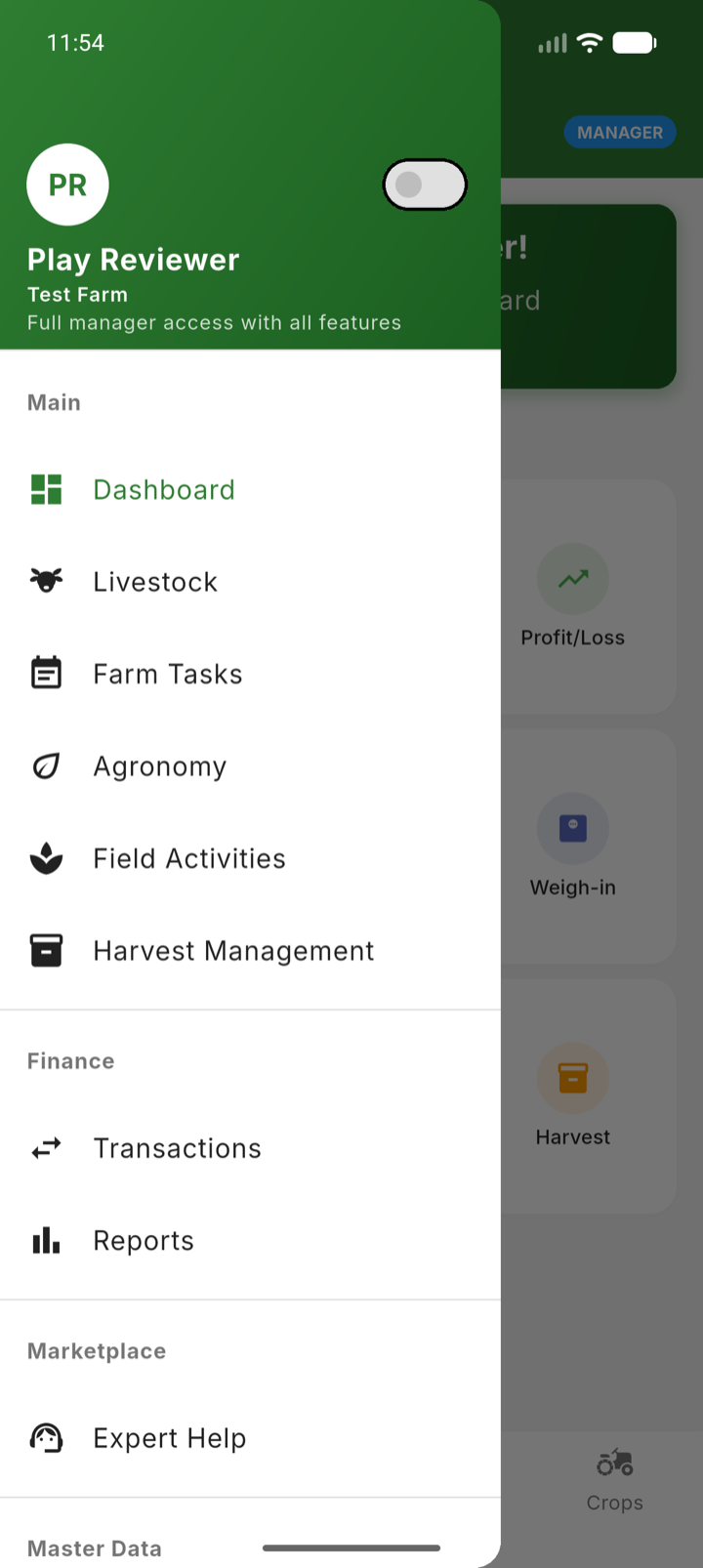
Hurudza has three layers of navigation: bottom tabs for everyday screens, a menu drawer for everything else, and dashboard quick actions for your most frequent jobs.
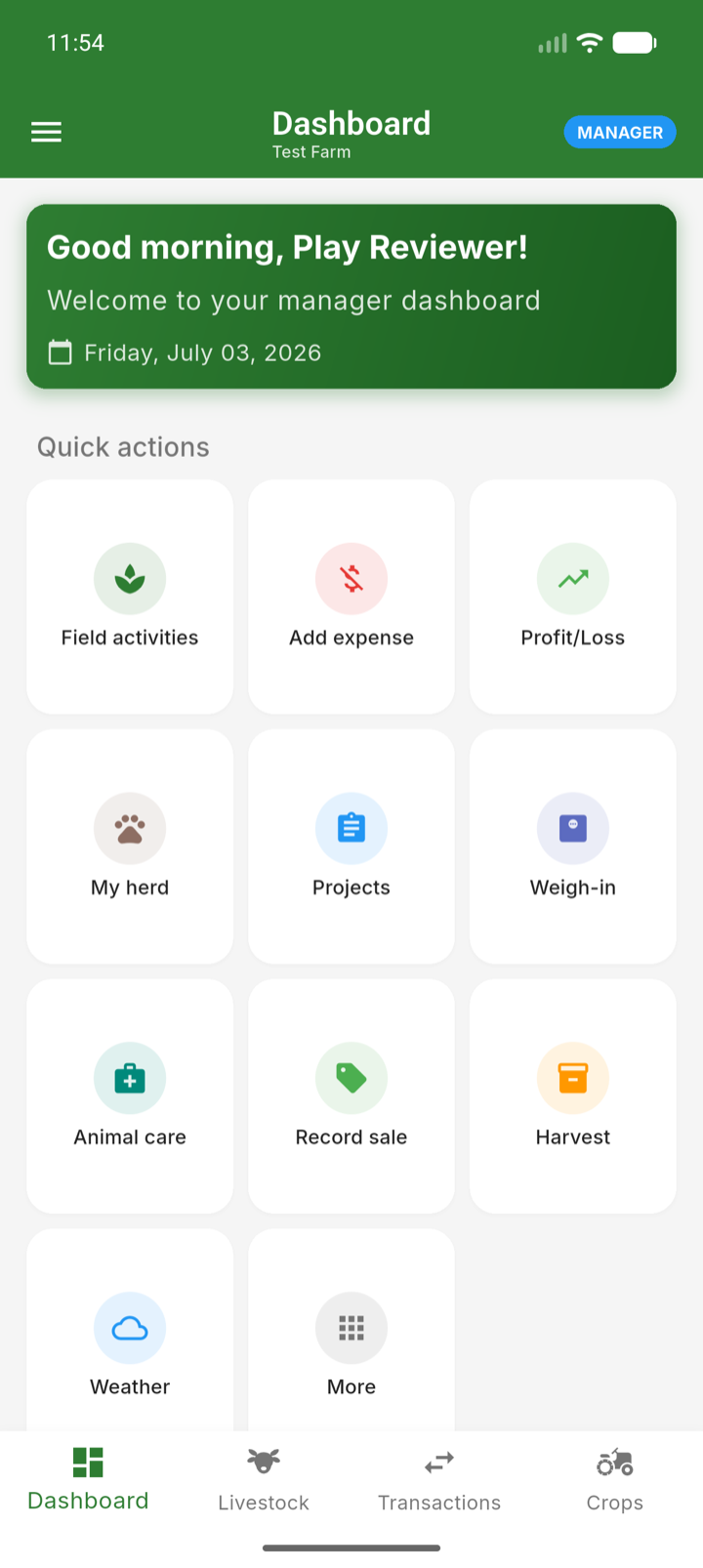
Bottom tabs
- Dashboard — your greeting, due and overdue work, and quick-action tiles.
- Livestock — the species hub: cattle, small stock, poultry and fish.
- Transactions — income and expenses side by side.
- Crops — your crop records.
The menu drawer
- Main — Farm Tasks, Agronomy, Field Activities and Harvest Management.
- Finance — Transactions and Reports.
- Master Data — Projects, Fields, Crops, Suppliers, Buyers, Pens and Products.
- Warehouses and Machinery — storage locations, stock and equipment.
- My Team — Employees and Payroll.
- Administration — User Management, Account and Farm Settings.
- Help — the in-app video tutorials.
Tip: The dashboard's quick-action grid adapts to your permissions — the tiles you see are shortcuts to the actions you use most, such as Record Sale or Log Activity. Tap More to open the full menu.